
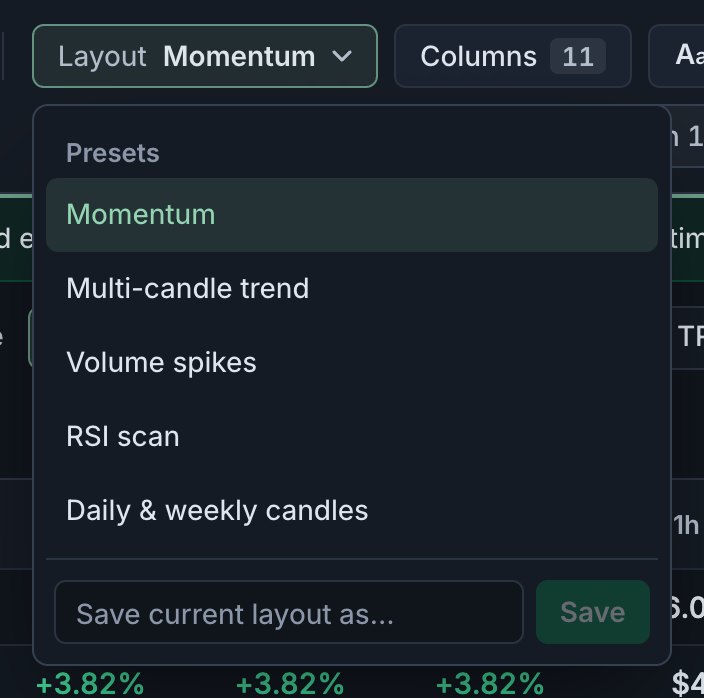
The app bar has two menus that look alike: Screen and Layout. A screen decides which pairs are in the table. A layout decides which columns you see them with. They’re saved separately, so any screen works with any layout.
What each one holds
| Screen | Layout | |
|---|---|---|
| Answers | Which pairs? | Which columns, and how? |
| Holds | Rules, all/any, and the exchange, quote and minimum volume filters | Columns, their order, widths, pins and sort |
| Ready-made ones | 7, from “All pairs” to “Bounce: red day, then green day” | 5: Momentum, Multi-candle trend, Volume spikes, RSI scan, Daily & weekly candles |
| Saving changes | Save again under the same name | Saved layouts save every change by themselves |
| Shown as edited | Orange dot next to its name | No dot |
| Can be shared with a link | Yes | No |
| Used by alerts | Yes: an alert watches a screen | No |
| Free plan | 3 saved screens | 3 saved layouts |
How they combine
Think of the screen as the question and the layout as the way you read the answer. The same screen, “4h breakout with volume”, can be read with the Momentum layout to see how far each pair moved on every timeframe, or with Volume spikes to see how unusual the volume is. Switch the layout and the pairs stay the same; switch the screen and the columns stay the same.
Two things are kept for each combination:
- The sort. Coinlyzer remembers how you last sorted each screen with each layout. When you open a screen for the first time, the table is sorted by its first rule’s column: highest first, or lowest first for a “below” rule.
- Columns the rules need. See the next section.
Columns that come with a rule
When a rule uses a column your layout doesn’t have, Coinlyzer adds it at the right end of the table so you can see the values the rule is checking. Its header name is green:

- It stays as long as the rule does, and goes when you remove the rule or switch to another screen.
- It has no × and isn’t saved into your layout, because it belongs to the screen.
- To keep it for good, add the same column from Columns; it then becomes part of the layout and its header is no longer green. See Add, remove and arrange columns.
What happens to your changes
Screens and layouts treat changes differently, on purpose:
- Screens wait for you to save. When you change a rule or filter, an orange dot appears next to the screen’s name. The saved version stays as it was until you save again under the same name from Save current screen as…. That way you can try an idea without losing a screen that works. Your current, unsaved screen is still there when you come back in the same browser.
- Saved layouts save themselves. Moving, resizing, pinning or sorting columns in a layout you saved changes that layout right away, on all your devices. A column arrangement is something you want kept, not tried out.
- Ready-made ones stay as they are. Your edits to a ready-made screen or layout are kept in this browser; pick it again from its menu to start over. To keep your version, save it under a new name.
Try it now
Open the ready-made screen “Hourly volume spike”, then switch the layout between Momentum and Volume spikes. The pairs stay; the columns change.
FAQ
What is the difference between a screen and a layout?
A screen decides which pairs are in the table: its rules and filters. A layout decides which columns you see and how they are arranged. Any screen works with any layout.
Why did a column appear that I didn’t add?
A rule in your screen uses it and your layout doesn’t have it. It shows in green while the rule exists. Add it from the Columns panel to keep it.
Does a share link include my columns?
No. A share link holds the screen: its rules and filters. The person opening it sees their own layout.
What does the orange dot next to the screen name mean?
The screen has changed since you opened or saved it. Save it again under the same name to keep the changes.
Next guide
Save and share a screen
Save a screen to your account so it’s on every device, update or delete it, and share it with a link anyone can open, with or without an account.
Related
Coinlyzer shows market data only. Screens and examples in this guide show how the product works; they are not investment advice or a recommendation to buy or sell anything. Screenshots may differ slightly from the app as it improves.