
A screen you’ve built is worth keeping. Save it to your account and it’s one click away on any device. Copy its share link and anyone can open the same screen, live, even without an account.
Save a screen
Set up the screen
Add your rules and filters, or start from a ready-made screen and change it. See Build a rule.
Open the Screen menu and type a name
The box at the bottom says Save current screen as…. Type a name that tells you what the screen finds, then click Save or press Enter.
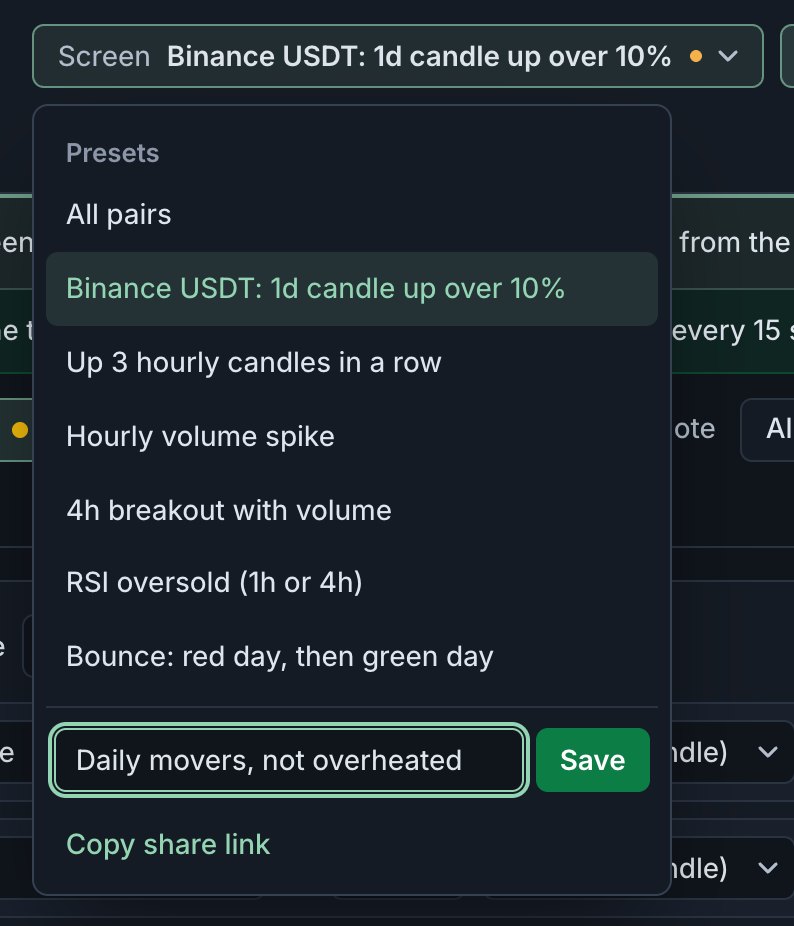
Saving from the Screen menu. The name can be anything; it’s what you’ll see in the menu. Find it under Saved
The screen now appears under Saved in the Screen menu, below the ready-made ones, and its name is in the app bar. It’s stored in your account, so it’s there on your phone and any other browser you sign in on.
Saving needs a free account. As a visitor, clicking Save opens a short sign-up form instead. The screen you built stays open in this browser while you sign up; save it once you’re in.
Update or delete it
- Update: change the rules or filters, then save again under the same name. It replaces the old version. Until you do, an orange dot next to the name shows the screen has unsaved changes.
- Keep both: save under a new name. The original stays as it was.
- Delete: click ✕ next to its name under Saved. It’s removed right away.
Share a screen
Open the Screen menu and click Copy share link. The link is copied, and a bar under the app bar shows it, in case you want to select it yourself:

Any screen can be shared, saved or not, and you don’t need an account to share one. The link is the screen: nothing is uploaded or stored when you copy it.
What the other person sees
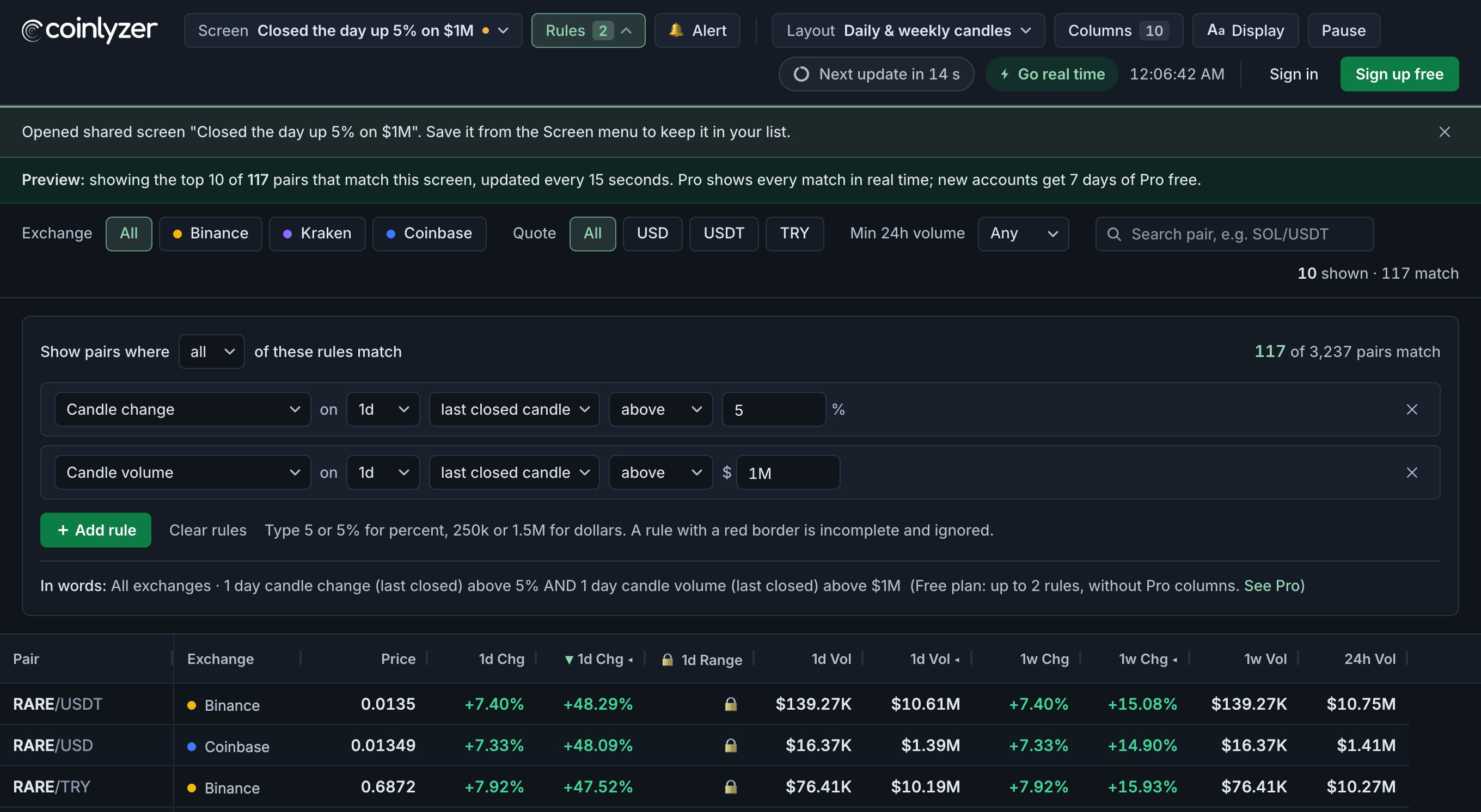
The link opens the screener with your screen loaded and a short note saying so:
| Who opens it | What they see |
|---|---|
| Visitor, no account | The live preview: the top 10 matching pairs, updated every 15 seconds |
| Free member | The top 25 matching pairs, updated every 15 seconds |
| Pro member | Every matching pair, in real time |
- They see the screen with their own layout, not yours.
- Opening a link replaces the screen they had open. Their saved screens aren’t touched. To keep the shared one, they save it from the Screen menu like any other.
- Rules on Pro columns are shown but not applied for visitors and Free members.
What’s in a share link
| In the link | Not in the link |
|---|---|
| The screen’s name | Your account, email or plan |
| Its rules and the all/any setting | Your layout, columns and sort |
| Its exchange, quote and minimum volume filters | The search box |
| Your alerts |
The link is a snapshot. If you change the screen later, people with the old link still get the old version; copy a new link to share the change. The screen sits after the # in the link, a part browsers keep to themselves rather than send to a server.
Open a shared screen
This link opens the screen from the screenshots: pairs whose daily candle closed up more than 5% on more than $1M of volume.
FAQ
Do I need an account to save a screen?
Yes, a free account. Saved screens are stored in your account, so they are on every device you sign in on.
How many screens can I save?
Up to 3 on the Free plan, unlimited on Pro.
Can someone without an account open my share link?
Yes. They see the screen in the live preview: the top 10 matching pairs, updated every 15 seconds.
If I change my screen, does the shared link change too?
No. A link is a snapshot of the screen when you copied it. Copy a new link after changing the screen.
Does a share link reveal my account?
No. It holds only the screen’s name, rules and filters.
Next guide
Create your first alert
Turn any screen into an alert: name it, pick where it reaches you, and choose how often the same pair can fire again. What “starts matching” means, and why it keeps alerts quiet.
Related
Coinlyzer shows market data only. Screens and examples in this guide show how the product works; they are not investment advice or a recommendation to buy or sell anything. Screenshots may differ slightly from the app as it improves.