
A screen is a question you ask the whole market: which pairs are doing this right now? Coinlyzer asks it of more than 3,200 pairs on Binance, Kraken and Coinbase, and keeps the answer live. You don’t have to start from a blank page. Pick a ready-made screen, change one thing, and you have your own.
Five steps
Open the screener
Go to app.coinlyzer.com. The screener opens on All pairs: every pair on all three exchanges, one row each, with columns such as the 1-hour candle change and the daily volume.
You can look around without an account. Visitors see the top 10 rows of each screen. A free account shows more and lets you save screens and set alerts.
Pick a ready-made screen
Click Screen in the top-left corner. Under Presets you’ll find seven screens, each a common question traders ask. Choose Binance USDT: 1d candle up over 10%.
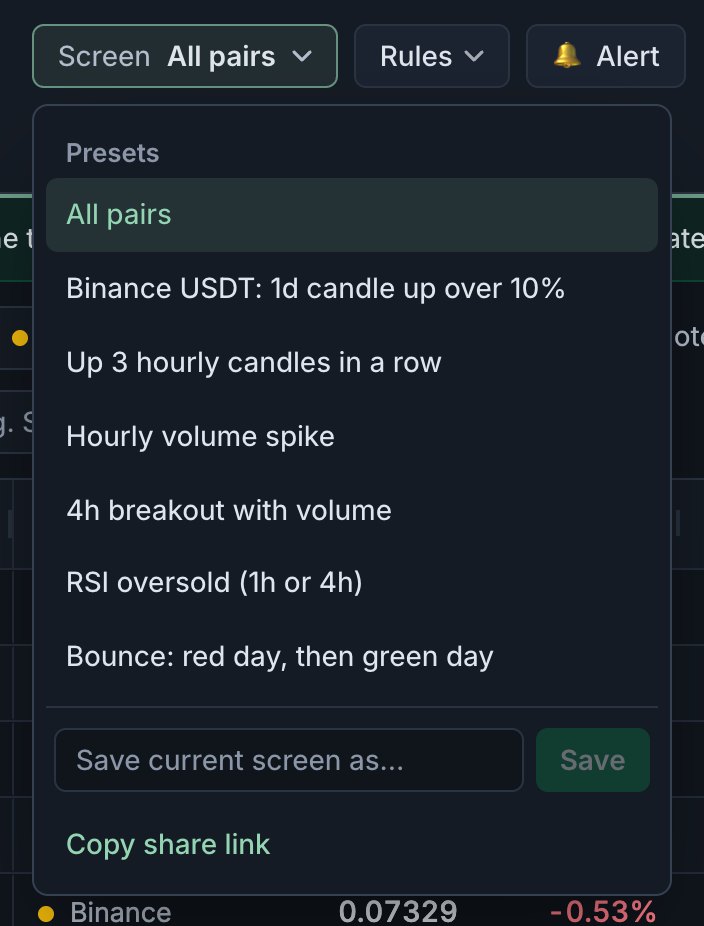
The Screen menu: presets at the top, your saved screens below them, then Save and Copy share link. The table now shows only Binance pairs quoted in USDT whose daily candle is up more than 10% so far today. The exchange and quote buttons above the table switched with it, because a screen holds its filters as well as its rules.
Make it yours with one rule
Click Rules to open the rules panel. You’ll see the preset’s rule: Candle change on 1d, now (live candle), above 10%. Click + Add rule and a second row appears. Set it to:
- RSI (14) on 1h, now (live candle), below, 70
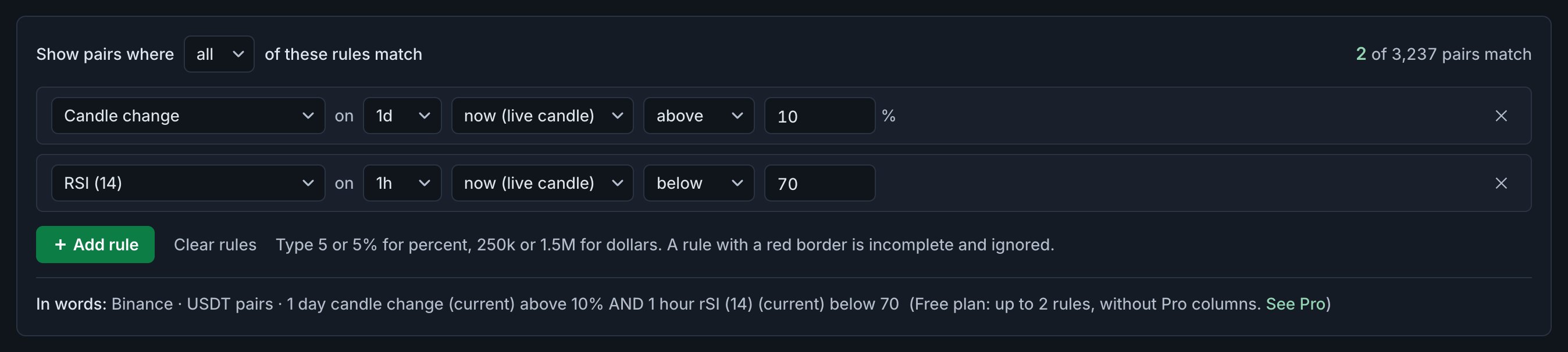
Two rules, both must match. The count at the top right and the sentence at the bottom update as you type. Now the screen asks a sharper question: which pairs are up big today but not overheated on the hourly chart? Watch the count in the top-right corner of the panel change as you edit, and read the In words line at the bottom to check the screen says what you meant.
A small orange dot appears next to the screen’s name. It means the screen has changed since you opened it. Nothing is lost; it just isn’t saved yet.
Sort by what matters to you
Click a column header to sort by it, highest first. Click again for lowest first. Here, sort by 1d Chg to put the day’s biggest movers on top, or by 1h RSI to see the least stretched first. A ▼ or ▲ next to the name shows the sort.
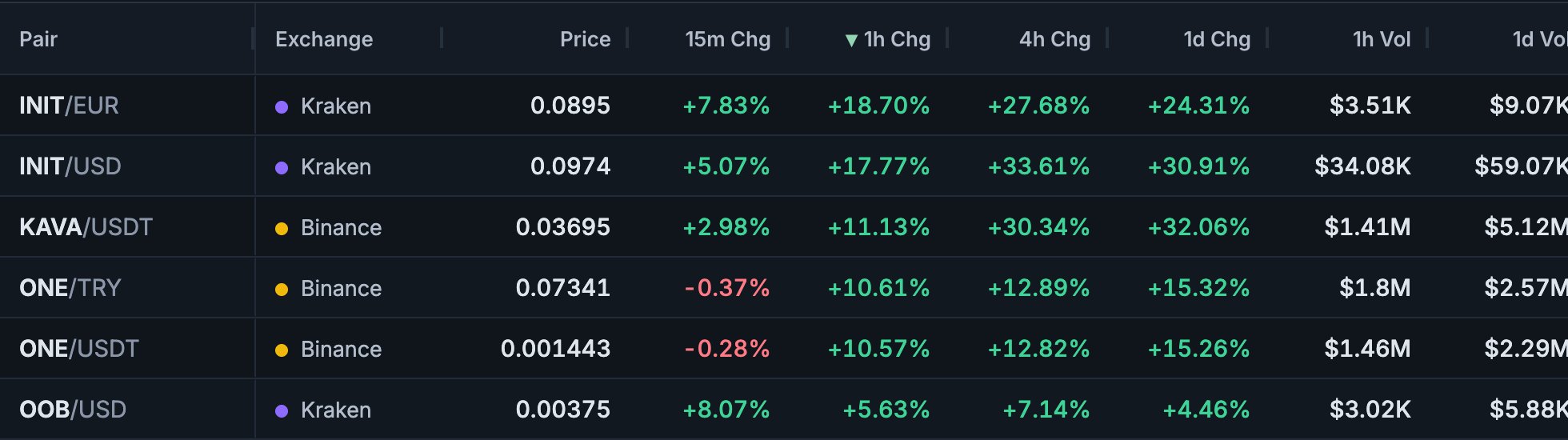
▼ marks the column the table is sorted by. Hold Shift and click another header to add a second sort. Want a tie-breaker? Hold Shift and click a second header. Coinlyzer remembers the sort for each screen and layout, so it’s there the next time you open them.
Save it
Click Screen again, type a name in Save current screen as… and press Save. Your screen now appears under Saved in the same menu, on any device you sign in on.
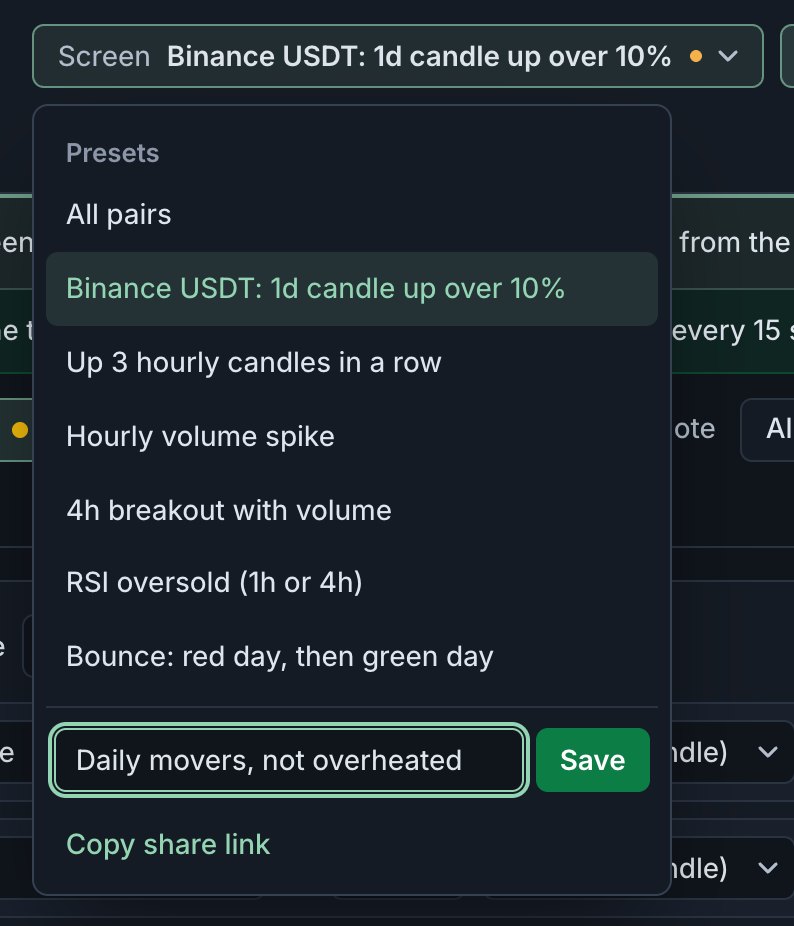
Save under a new name to keep the preset untouched. Saving under an existing name replaces that screen. Saving needs a free account; if you aren’t signed in, Coinlyzer asks you to create one first. The screen you have open stays in your browser meanwhile. Saving under a name you already use replaces that screen. The ✕ next to a saved screen deletes it.
Open the finished screen
This is the screen from the steps above, opened live. Change a value and watch the matches move.
Where to go next
- Get told when a pair starts matching. Click 🔔 Alert on any screen. Coinlyzer sends a message when a pair joins the list, in the app, on Telegram, by browser push or by email.
- Understand every column. The next guide explains how each column is built from three parts: metric, timeframe and candle.
- Share it. Copy share link in the Screen menu gives you a link that opens this exact screen for anyone, even without an account.
Free and Pro
Everything in this guide works on the Free plan. Free applies up to 2 rules per screen, shows the top 25 matches, updates every 15 seconds and keeps 3 saved screens. Pro removes those limits, updates in real time and adds the multi-candle and volume columns.
FAQ
Do I need an account to try the screener?
No. Without an account you see the top 10 pairs of any screen, live. A free account shows more rows and lets you save screens and set alerts.
Does Coinlyzer save my changes automatically?
The screen you have open is kept in your browser, so it is still there when you come back. To keep a screen in your account and on other devices, save it from the Screen menu. Saving under the same name replaces the old version.
Why does my screen show no pairs?
No pair matches all your rules right now. Lower a value, widen the exchange or quote filters, or switch the rules panel from "all" to "any".
Can Coinlyzer trade for me?
No. Coinlyzer shows market data only. It never asks for exchange API keys and can’t place orders.
Next guide
A tour of the screener
Every part of the Coinlyzer screener on one page: the app bar, rules, filters, the live table and the status bar, and what each one is for.
Related
Coinlyzer shows market data only. Screens and examples in this guide show how the product works; they are not investment advice or a recommendation to buy or sell anything. Screenshots may differ slightly from the app as it improves.