
Coinlyzer has more than 250 columns, but the table only shows the ones you pick. You choose them in the Columns panel, then arrange them right in the table: drag to reorder, drag an edge to resize, pin the ones you always want in view.
Add and remove columns
Open Columns
Click Columns in the app bar. The number on the button is how many columns your table has now. A panel slides in from the right.
Pick a basic column, or a metric on a timeframe
The three buttons at the top are the basics: Price, 24h change (rolling) and 24h volume (rolling). Below them is a grid: one row per metric, one column per timeframe from 5m to 1w. Each cell has two buttons, Now for the live candle and Last for the last closed one. Click a button to add that column; it lights up green. Click it again to remove it.
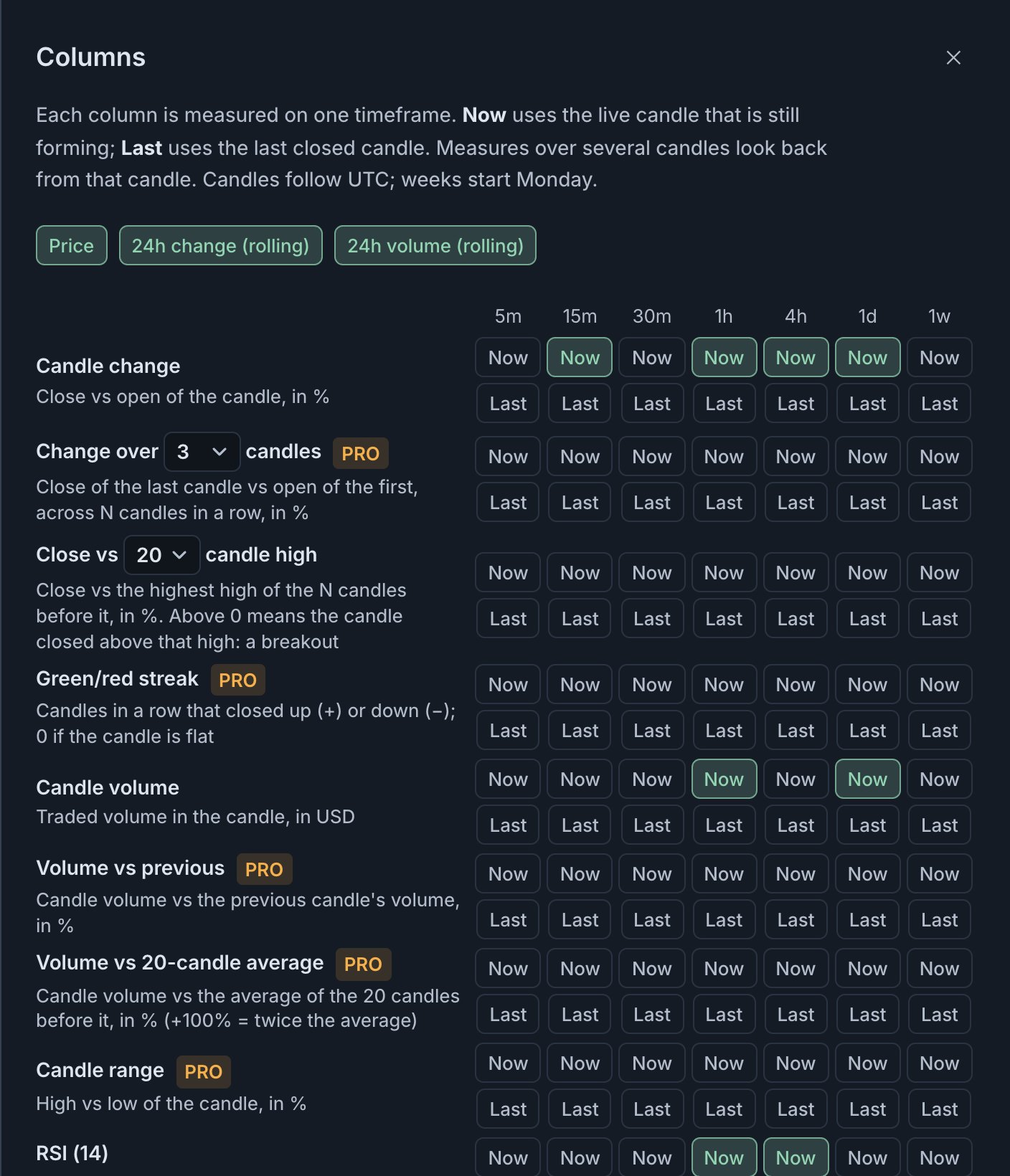
Each lit button is a column in your table. Hover any button to see exactly what the column measures. Not sure what a metric means? Hover over its name, or over any Now or Last button, for a one-line description. The guide How Coinlyzer measures explains all nine metrics.
For counted metrics, pick the number of candles first
Two metrics look back over several candles: Change over N candles (2 to 24 candles) and Close vs N-candle high (10, 20 or 50 candles). Their row has a small menu for the count. Pick the count, then click Now or Last. To have both 3 and 6 candles, pick 3 and add, then pick 6 and add again. A • in the menu marks counts you already have columns for.
Close the panel
Click ✕ or anywhere outside the panel. New columns appear at the right end of the table, with values filled in at the next update.
To remove a column without opening the panel, hover its header and click ×. Pair and Exchange are always there and can’t be removed.
Arrange the table
Everything else happens on the column headers:
- Reorder: drag a header left or right.
- Resize: drag the right edge of a header.
- Sort: click a header’s name to sort high to low, again for low to high, a third time to clear. Shift-click another header to add a second sort.
- More: hover a header and click ⋮ for the column menu.
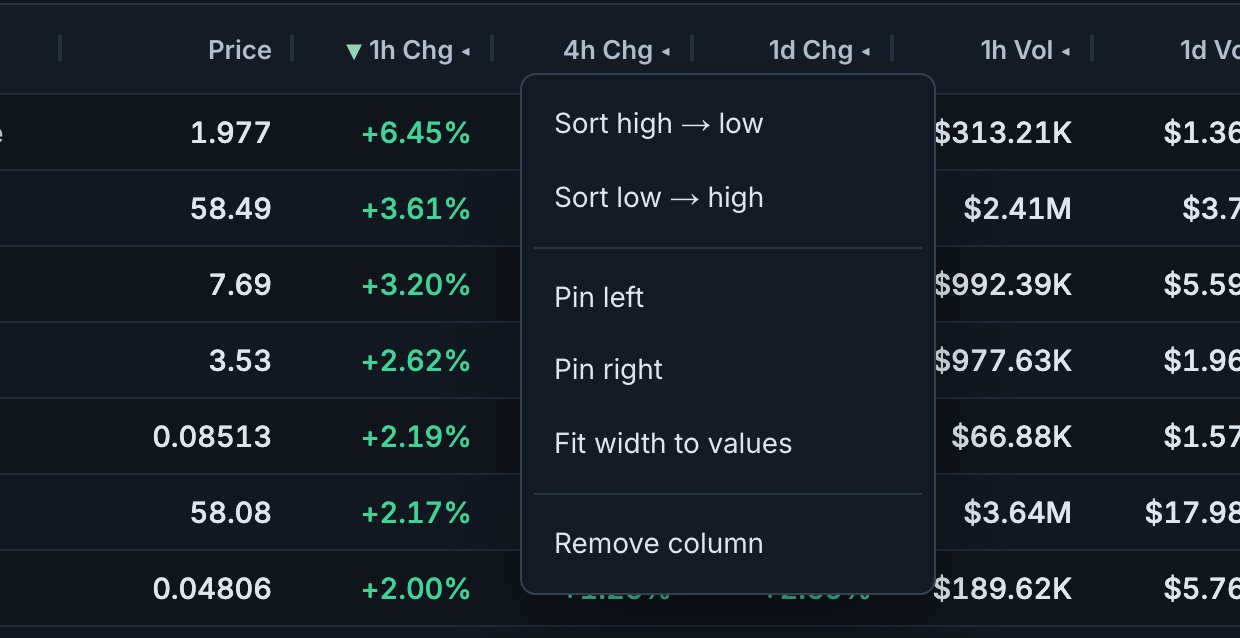
The menu has:
- Sort high → low and Sort low → high, plus Clear sort when the column is sorted.
- Pin left and Pin right keep a column in view while you scroll sideways; Unpin releases it. The Pair column is pinned left from the start.
- Fit width to values sizes the column to its widest value.
- Remove column does the same as the ×.
How your changes are kept
The columns, their order, widths, pins and sort together make a layout. The Layout menu shows which one you’re using, and what happens to your changes depends on it:
- A ready-made layout (Momentum, Volume spikes and so on): your changes are kept in this browser, so the table looks the same next time. Pick the layout again from the menu to get the original back.
- A layout you saved: every change is saved to it as you make it, on every device you sign in on. There’s no separate save step.
To keep an arrangement for good, type a name in Save current layout as… at the bottom of the Layout menu. Saving needs a free account. Screens vs layouts explains how layouts and screens work together.
Tips
- Put Now and Last side by side. “1h Chg” next to “1h Chg ◂” shows whether a move is continuing or new. See Now vs Last.
- Keep 24h volume in every layout. It tells you at a glance whether a big percentage move had real money behind it.
- Make one layout per job. A trend layout with multi-candle changes and streaks, a volume layout, an RSI layout. Switching layouts is quicker than adding and removing columns.
- Too wide? Pin Pair left and your main column right, then scroll the rest. Or switch to Compact rows and a smaller font under Aa Display.
Try it now
Open the Columns panel and add 4h Chg, Now and Last, next to the hourly ones.
FAQ
How many columns can I add?
As many as you like. Wide tables scroll sideways; pin the columns you always want to see.
Why is a column header green?
A rule in your screen uses that column and your layout doesn’t have it, so Coinlyzer shows it while the rule exists. Add it from the Columns panel to keep it for good.
I changed a ready-made layout. How do I get the original back?
Open the Layout menu and pick the same layout again. Your changes to a ready-made layout are only kept in this browser.
Do my columns follow me to another device?
Saved layouts do: they are stored in your account and every change is saved to them. Changes to a ready-made layout stay in the browser where you made them.
Next guide
Filters: exchange, quote asset, minimum volume and search
Narrow 3,200+ crypto pairs by exchange, quote asset and minimum 24h volume, or search for one pair. What each filter removes, and how filters differ from rules.
Related
Coinlyzer shows market data only. Screens and examples in this guide show how the product works; they are not investment advice or a recommendation to buy or sell anything. Screenshots may differ slightly from the app as it improves.